Audit log
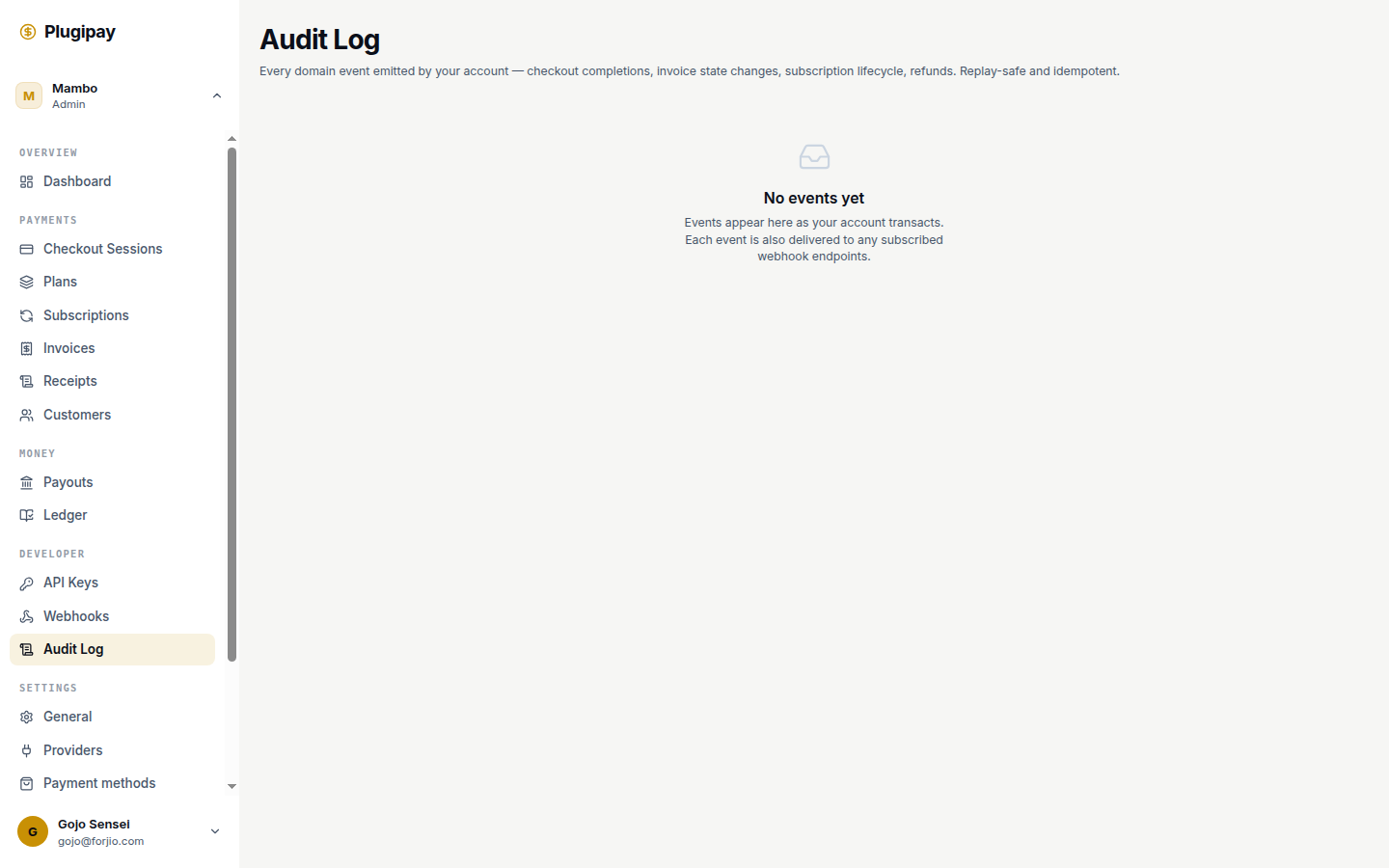
The audit log is the workspace's memory. Every meaningful action — a sign-in, an API key being minted, a refund being issued, a webhook endpoint being rotated — lands here as a single immutable entry. If you need to answer "who did what, when, from where?", this is the page you open.
Plugipay writes audit entries automatically. You can't turn them off or edit them, and they survive even after the actor is removed from the workspace. The page lives at /dashboard/audit-log.
Append-only, by design. Audit entries are write-once. Even workspace owners can't delete a row — the worst you can do is archive the whole workspace, and the entries follow it. This is what makes the log useful as evidence.
What gets logged
The audit log captures every action that changes state or grants access:
- Authentication. Sign-in, sign-out, sign-in failure, password reset, two-factor enrollment, session revocation.
- API key lifecycle. Creation (with prefix and scope), rotation, revocation.
- Customer actions. Creating, updating, or archiving a customer; attaching or detaching payment methods.
- Payment actions. Creating a checkout session, capturing, voiding, refunding, marking an invoice paid out of band.
- Workspace settings. Renaming the workspace, switching the default provider, editing webhooks, inviting or removing team members, changing roles.
Read-only actions — browsing the dashboard, downloading a receipt — aren't logged. The log answers "what changed?", not "who looked?".
The list view
The list at /dashboard/audit-log shows the most recent entries first. Each row has three columns:
- Event — the action type as a dotted identifier, e.g.
payment.refunded,apiKey.revoked,auth.signin.succeeded. Monospace so you can copy them into a search or alert rule. - Aggregate — the resource the event acted on, formatted as
<type>/<id>. A refund showspayment/pay_01H…; an API key revocation showsapiKey/sk_live_…. Click to jump to its detail page. - When — a relative timestamp ("3 minutes ago"). Hover for the full ISO datetime in your workspace's timezone.
Empty workspaces see "No events yet" until the first action lands — usually within seconds of the owner's first sign-in.
Filters
Four filters sit above the list and combine with AND:
- Actor. A specific human user (by email), an API key (by prefix), or the synthetic
systemactor used for background jobs like nightly settlement. - Action type. A multi-select of dotted event names, grouped by domain — Authentication, Customers, Payments, Refunds, Settings, Webhooks.
- Date range. A from/to picker, defaulting to the last 7 days. Maximum span is 1 year per query — for longer windows, export.
- Target resource. Paste any Plugipay ID (
cus_…,pay_…,sub_…,sk_live_…) and the list narrows to entries whose aggregate matches.
The search box accepts an actor email, IP address, or request ID, and searches every detail-view field — not just the indexed columns.
The detail view
Click any row to open the detail drawer. Every entry carries the full request context Plugipay had at the time:
- Actor — user email and Huudis ID, or the API key prefix and label.
- IP address — the public IP the request came from, not truncated or anonymized.
- User agent — the raw
User-Agentheader. Distinguishes a browser session from a CLI call from a backend SDK. - Request ID — the
req_…ID that ties this entry to a row in the API logs and any related webhook delivery. - Before / after state — for mutations, a diff of the fields that changed. For creation events, only the after side is populated.
- Related entries — if the action was part of a chain (a checkout that produced a payment that produced a receipt), we link the siblings inline.
The detail view is read-only. No edit, no delete, no annotate.
Exporting for compliance
To hand the log to finance or an external auditor, click Export in the top-right. You'll get a CSV of every entry matching your current filters, one row per entry, one column per detail-view field. Exports are generated on-demand and emailed when ready — large windows take a minute or two.
CSV timestamps are always UTC regardless of your dashboard timezone — the format every auditor we've talked to prefers.
Retention
How long entries stick around depends on your plan:
| Plan | Retention |
|---|---|
| Free | 1 year |
| Growth | 3 years |
| Scale | 7 years |
| Custom | Negotiable, up to indefinite |
Entries past the retention horizon are deleted nightly. If you need a snapshot for compliance, export before the horizon — we can't recover deleted rows. Archived workspaces keep their log for the same window, measured from the archive date.
Programmatic access
Everything in the portal is available via the API at /v1/events — use it to ship entries to your SIEM, warehouse, or compliance tool. See the API reference for endpoint shape, filters, and pagination.
When you'll reach for it
- Investigating an unexpected charge. Filter to the payment ID to see who initiated the checkout, which API key authorized it, and from what IP.
- Demonstrating compliance. SOC 2 and PCI auditors typically ask "who had access to production and what did they do?" One filtered CSV usually answers it.
- Debugging a chain. When a refund "just happened" and nobody on the team admits to it, the actor column usually settles it — often a scheduled job or third-party integration.
- Spotting credential leaks. A new IP on an API key that's supposed to run from one server is a flag worth chasing.
Common pitfalls
- Timezones in the filter. The date filter uses your workspace timezone (under Settings → Business), not your browser's. Exports are always UTC. If a query "missed" an event, check the offset first.
- User actions vs. API actions. A refund issued by a teammate clicking the button looks almost identical to one issued by your backend calling the API. The actor column distinguishes them — one is an email, the other a
sk_live_…prefix. - Archived workspaces. You can still read the log of an archived workspace, but no new entries land. Don't be surprised by a quiet log if you're looking at one by mistake.
- System actor. Some entries show
system— nightly settlement, automatic webhook retries, provider-initiated refund notifications. That's Plugipay acting on your behalf.