Ledger
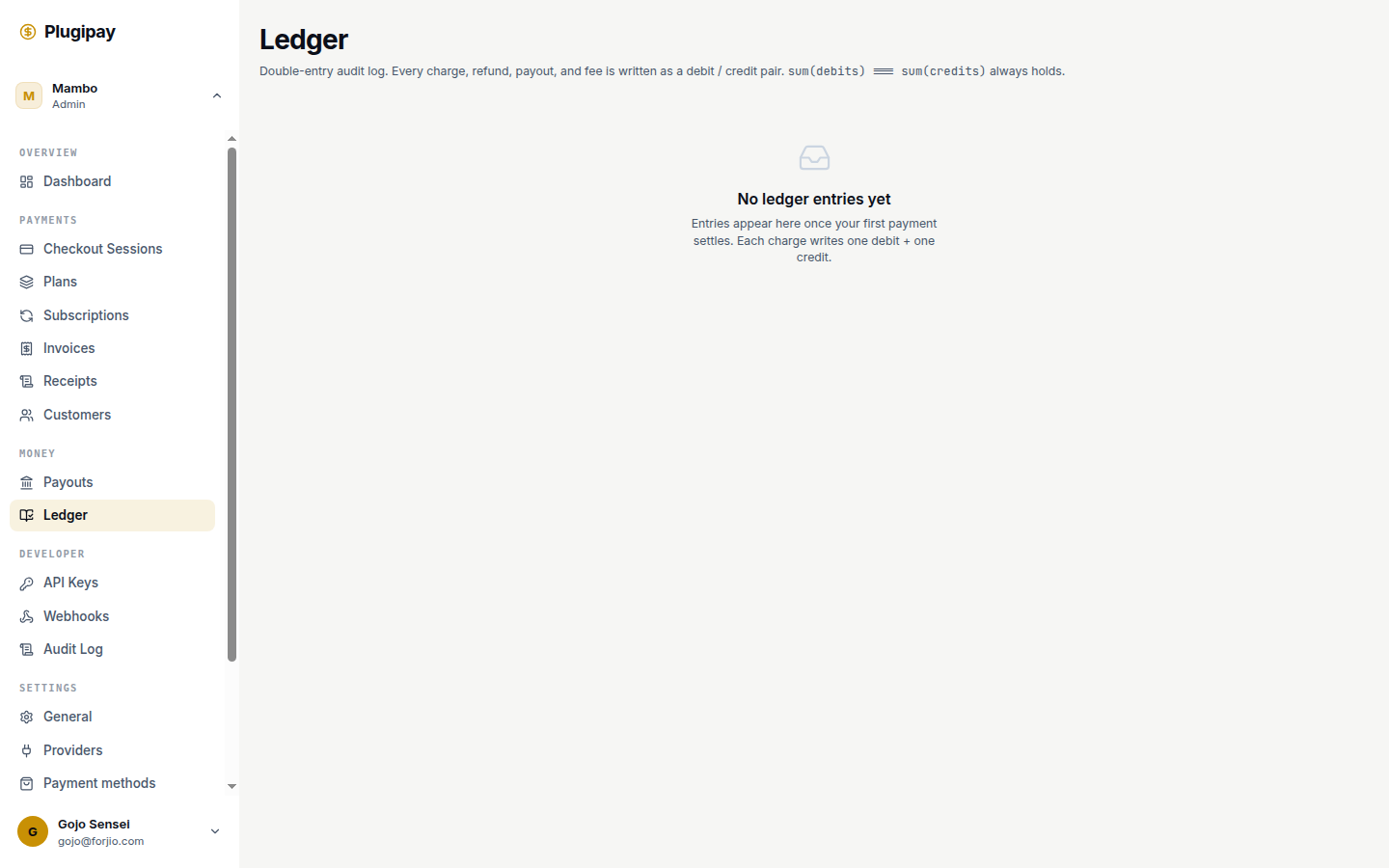
The ledger is Plugipay's chronological record of every money movement in your workspace — payments in, refunds out, processing fees, payouts, and manual adjustments. It's the page your accountant will live in.
If Payments is "what happened to a customer", the ledger is "what happened to your money". Every event that nudges your balance up or down appears here, in order, with a stable reference back to the source object.
One source of truth. Reports, statements, and CSV exports all read from the same ledger. If two numbers disagree, the ledger is the one that's right.
What's in the ledger
Plugipay writes a ledger entry the moment a financial event is confirmed by a provider (Xendit, Midtrans, PayPal, or Plugipay Managed). Each entry is one row with:
- Date — when the event occurred, in your workspace timezone.
- Type —
payment,refund,fee,payout, oradjustment. - Amount — positive for money in, negative for money out.
- Currency — ISO-4217 code (e.g.
IDR,USD). - Reference — a clickable link to the underlying payment, refund, or payout.
- Description — human-readable context (e.g. "Stripe fee for ch_1abc", "Manual write-off — chargeback dispute lost").
- Status —
pendingorsettled.
Entries are immutable. If something needs correcting, Plugipay writes a new adjustment entry rather than rewriting history. This is what makes the ledger safe to audit.
Filtering
Open Reports → Ledger in the sidebar. The default view shows the last 30 days, all entry types, in your workspace's primary currency.
By entry type
The type chips at the top of the page act as toggles. Click Payments to see only inbound money, Fees to audit processor costs, Payouts to reconcile against your bank statement. Multiple chips combine with OR — selecting Refund and Adjustment shows both.
By date range
The date picker accepts presets (Today, Yesterday, This week, This month, Last month, Last 90 days, Year to date) or a custom start/end pair. Date filtering is inclusive on both ends and uses the workspace timezone — not UTC, and not your browser's local time.
By currency
If your workspace transacts in more than one currency, a currency dropdown appears next to the type chips. The running balance recomputes per currency — Plugipay never converts on your behalf inside the ledger. (Conversions, when they happen at the provider level, appear as their own paired entries: a debit in the source currency and a credit in the destination.)
Running balance
The right-hand column tracks your running balance — the cumulative sum of all settled entries up to and including that row. The balance at the top of the page (above the table) is your current available balance: settled entries only, in the selected currency.
A second figure, pending balance, shows the sum of entries that have been authorized but not yet settled. Pending entries are displayed in italics in the table.
Why might an entry sit pending? Card payments typically settle T+1 or T+2 depending on the provider. Bank transfer payments (VA, Permata, etc.) usually settle the same day. Refunds settle when the provider confirms reversal — sometimes minutes, sometimes a week.
Pending vs settled
Every entry starts as pending when Plugipay first hears about it and transitions to settled when the provider confirms the funds have moved. The transition is one-way: settled entries never go back to pending.
A few rules worth knowing:
- Pending entries don't count toward payouts. Only settled balance is paid out.
- Pending entries can disappear. If a payment is voided before capture, the pending entry is deleted (not replaced with an adjustment). This is the one exception to the immutability rule.
- The running balance ignores pending entries by default. Toggle Include pending in the table header to see both.
Relationship to payouts
When Plugipay sends money to your bank, it writes one payout entry equal to the negative of all settled entries since the last payout. After the payout posts, those underlying entries are marked paid out — you'll see a small chip next to the date.
This means your ledger always reconciles in two directions:
- Up to a payout — the sum of settled entries between two consecutive payouts equals the payout amount.
- Down from a payout — clicking a payout reveals every entry that contributed to it.
Use this to tie portal data to your bank statement: pick a deposit on your bank feed, find the matching payout in the ledger, and you have the full breakdown.
Exporting to CSV
For monthly reconciliation, hit Export → CSV in the top-right. The export honors every filter currently applied to the table — date range, type, currency, and the Include pending toggle.
The CSV is one row per entry with stable column headers (date, type, amount, currency, reference_id, reference_type, description, status, payout_id, running_balance). The header row never changes, so you can build a spreadsheet template once and reuse it forever.
Most teams export the previous calendar month on the first of the new month, import it into their general ledger software, and reconcile against the bank statement.
Common pitfalls
Timezone drift on the date filter. "Last month" is computed in your workspace timezone, not your accountant's. When sharing exports across timezones, prefer custom date ranges expressed in ISO dates.
Fee categorization. Plugipay records the provider's fee, not your effective fee. If you've negotiated a custom rate with Xendit, the fee entry reflects the rate Xendit charges you. Plugipay markup, when present, appears as a separate adjustment entry tagged plugipay_margin.
Refunds against prior-period payments. A refund is dated when it occurred, not when the original payment occurred. A January refund of a December sale shows up in January's ledger. For revenue reporting, pair Reports → Revenue (which attributes refunds back to the original sale period) with the ledger.
Currency conversion timing. Multi-currency payouts are converted at the provider's rate on the day of settlement, not the day of payment. Two payments of the same USD amount can produce different IDR entries if they settled on different days.
Accountant-friendly tips
Chart of accounts mapping
In Settings → Accounting, map each ledger entry type to one of your chart-of-accounts codes (e.g. 4000 for revenue, 5100 for processing fees, 1100 for clearing). Once mapped, every export and journal-entry generation uses your account codes instead of Plugipay's internal names.
Journal entry generation
Click Export → Journal entries to get a double-entry journal in your accounting tool's preferred format (Xero, QuickBooks, Jurnal.id, or generic CSV). Plugipay generates the debit/credit pairs from your mapping. The journal balances row-by-row — if it doesn't, the export refuses to run and points at the misconfigured mapping.
Next
- Payments — drill into the source records behind ledger entries.
- Refunds — how refunds are written into the ledger.
- Billing — fees and processor costs in detail.
- CLI:
plugipay ledger— the same data from your terminal.