Invoices
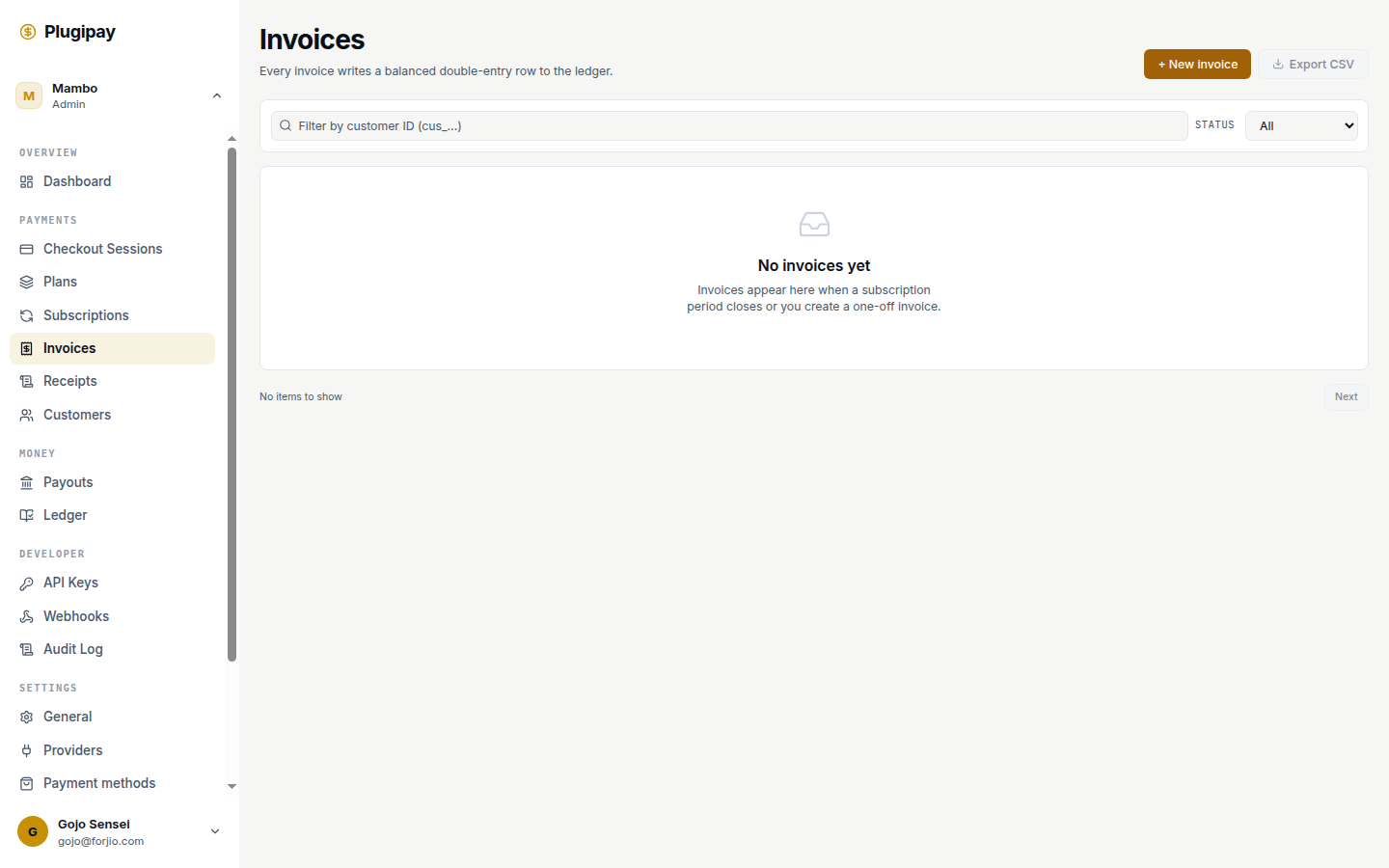
An invoice is a record of an attempted or completed billing event. Plugipay generates them automatically when a subscription cycle closes, and you can also create one-off invoices by hand — consulting work, a deposit, anything outside a recurring plan.
The Invoices page is at plugipay.com/dashboard/invoices, filterable by status, customer, or subscription.
One object, two origins. Subscription invoices and manual invoices share the same data model, lifecycle, and detail page. The only difference is who created them — Plugipay's billing engine or you.
Lifecycle
Every invoice moves through a small state machine:
| State | Means |
|---|---|
draft |
Created but not yet issued. Customer doesn't see it. Editable. |
open |
Issued and awaiting payment. Line items locked. |
paid |
Fully settled. Amount due is zero. |
past_due |
Open, and the dueAt date has passed. Dunning may apply. |
void |
Cancelled. Won't be collected, won't appear in totals. |
uncollectible |
Written off after dunning gave up. Stays on the books. |
You'll trigger draft → open with "Open invoice", open → paid with "Mark as paid" (for money received off-platform), and open → void with "Void". The collection engine handles open → paid automatically when a subscription's stored payment method succeeds.
Subscription invoices vs manual invoices
Subscription invoices are created by Plugipay when a billing cycle closes, populated from the plan and subscription (proration, discounts, taxes), and charged against the customer's stored payment method. They appear in open for a moment, then settle to paid (or slip to past_due if collection fails).
Manual invoices are anything else — you build them line-by-line on the New invoice page. They start in draft for internal review or open to bill immediately. No plan, no auto-retry; more commonly you'll wait for a bank transfer and mark them paid by hand.
Both kinds share the same list and detail page.
Creating a manual invoice
From the Invoices list, click + New invoice. The form has four cards:
- Customer + currency — pick an existing customer (create one under Customers first if needed). Currency is IDR or USD. Optionally pick an invoice template to override your workspace default for this one invoice.
- Line items — one row per billable thing. Description, quantity, unit amount.
- Adjustments + due date — flat discount, flat tax, optional due date, optional memo. Tax and discount are amounts, not percentages — e.g. 11% PPN on a Rp 500,000 subtotal is
55000. - Send behavior — create as
draft(internal review) oropen(issued, due, optionally emailed on creation).
The right-hand Summary card shows the running total as you type. Click Create & send (or Save draft) and you'll land on the detail page.
Amounts are in the smallest currency unit. Type
100000for Rp 100,000 (IDR is whole rupiah), or1000for $10.00 (USD is cents). The form's preview formats this for you.
Line items, taxes, discounts
Each line has a description, a quantity, and a unit amount. Subtotal is sum(quantity x unitAmount); then discount is subtracted and tax is added, both as flat amounts in the invoice's currency. Total = subtotal - discount + tax, floored at zero.
Plugipay takes a final tax figure rather than a percentage — that keeps the invoice immutable once issued and accommodates the frequent cases where tax lines get rounded by hand. The detail page shows subtotal, discount, tax, total, amount paid, and amount due in the Totals card.
Sending invoices by email
Open any invoice and find the Share & reprint card. Type a recipient into Email invoice to and click Send — leave it blank to use the customer's email on file. A PDF is attached and the body includes a public payment link.
You can resend the same invoice multiple times (useful as an overdue reminder); each send is logged in the audit trail. The card also offers a PDF download, the customer-facing HTML view, a short Public link, and ESC/POS 58mm / 80mm output for thermal printers. A live HTML preview sits below.
Voiding an invoice
Click Void on any non-paid, non-void invoice. It flips to void and is excluded from outstanding-balance totals, but the record remains for audit purposes.
Void, don't delete. There is no delete operation for invoices — voiding is how you retract a billing. It preserves the audit trail (who issued it, when, for what amount) while making clear no money is expected. Deleting financial records is something accountants and auditors take a dim view of, so we don't offer it.
You can't void a paid invoice — to reverse one, issue a refund against the underlying payment instead. See Refunds.
Recording off-platform payments
Many Indonesian businesses are paid by bank transfer outside Plugipay. When that happens, open the invoice and click Mark as paid — the invoice transitions to paid, amount paid is set to the total, and a payment.succeeded event fires so downstream automation (accounting, webhooks, fulfilment) sees it as collected.
Mark-as-paid is a bookkeeping action, not a money movement. Use it only after funds have landed in your account.
PDFs and the customer view
Plugipay generates a PDF for every invoice the moment it's created, using your workspace's invoice template (logo, address, footer, font) from Settings → Templates, or the per-invoice template if you picked one. The HTML view is what the customer sees from the email link — same data, web-formatted, with a Pay button.
When an invoice transitions to paid, Plugipay also writes a separate receipt to the customer's record. The invoice is the bill; the receipt is the proof of payment. See Receipts.
Reconciliation
If you take bank transfers, your statement will show deposits that need to be matched back to invoices. Put a reference (PO number, invoice number) in the memo field at creation — the customer copies it into their transfer note, and you can search by it from the Invoices list. Mark-as-paid stores the timestamp and operator, which combined with the bank statement closes the loop. A first-class reconciliation tool is on the roadmap.
Common pitfalls
past_duedoesn't mean failed. It just means the due date has passed. The invoice is still collectible — subscription invoices keep retrying the stored method, manual invoices can be marked paid at any point.- Void vs delete. There is no delete. Invoice IDs are permanent even after voiding. Created one for the wrong customer? Void it and issue a new one.
- Currency is per-invoice. One invoice, one currency — you can't mix IDR and USD lines.
- Drafts don't bill. A draft never charges anyone and never shows in customer-facing totals. Open it before expecting movement.
- Email send needs a verified sender. If invoice emails fail, check Settings → Business — the
fromaddress must be on a verified domain.
Next
- Receipts — the proof-of-payment counterpart.
- Subscriptions — recurring billing that produces invoices automatically.
- Refunds — reversing a paid invoice.
- Templates — customise the look of invoice PDFs and emails.