Receipts
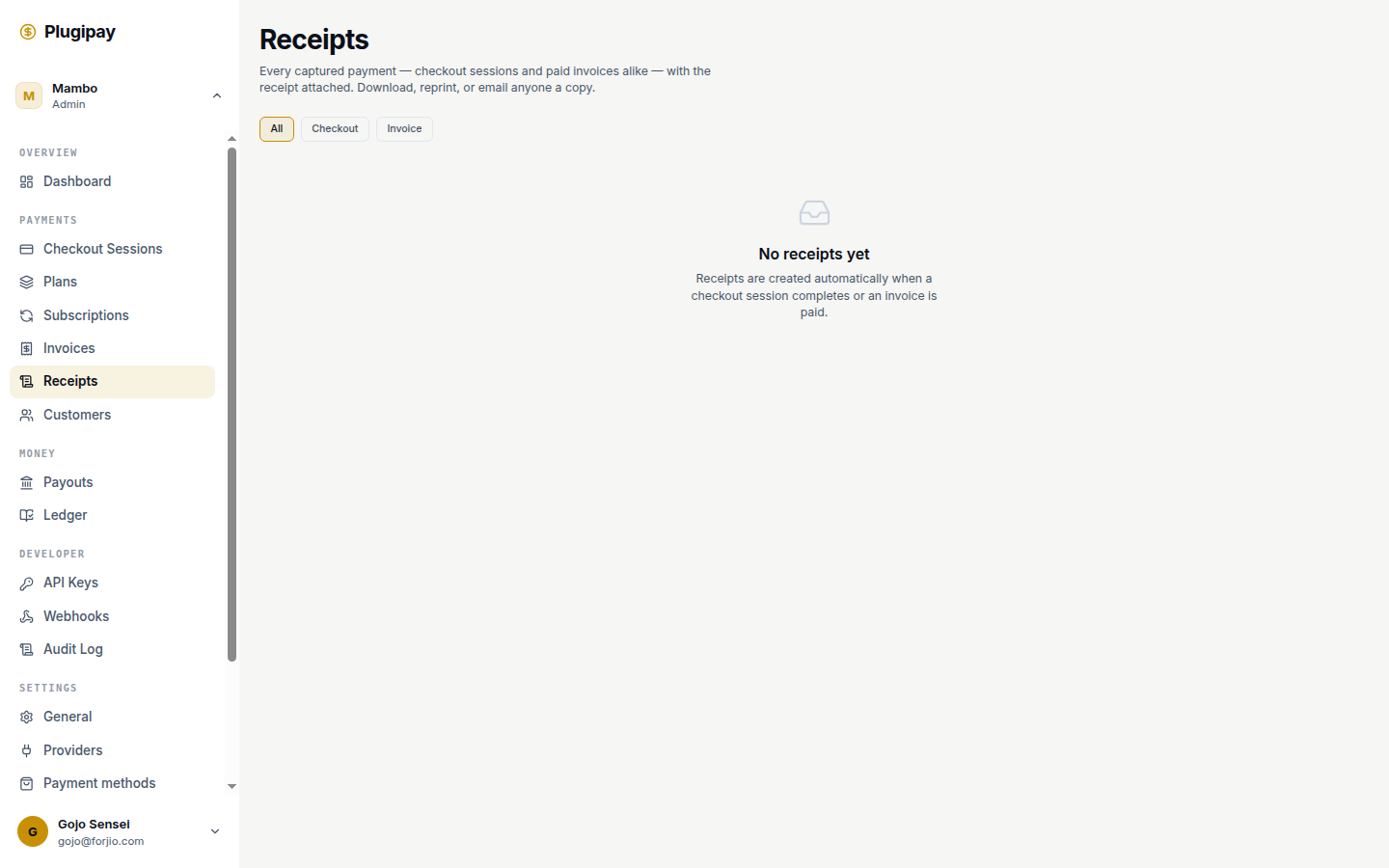
A receipt is the customer-facing proof that a payment was received. In Plugipay, receipts are first-class records — not a PDF rendered on demand from a payment row, but a stored object with its own ID, number, and immutable snapshot of what was paid, by whom, and when.
You'll find them at Receipts in the sidebar. Every captured payment — from a checkout session or a paid invoice — has one attached automatically.
Receipts vs invoices. An invoice is a request for payment (what's owed, due date, line items). A receipt is a record of payment (what was actually paid, when it cleared, the method used). One paid invoice produces one receipt. A checkout session that succeeds also produces a receipt — no invoice required.
Auto-generation
You don't create receipts. Plugipay does, the moment a payment succeeds — whether from a checkout session, a paid invoice, or a subscription billing cycle.
The receipt snapshots the data at the moment of capture: business name, customer name and email, line items, tax breakdown, currency, payment method, and the upstream provider reference. If you later edit your business profile or rename the customer, the receipt keeps its original copy. That's deliberate — receipts are evidentiary.
Receipt identifier: rcpt_01H…. The receipt number (what your customer sees) follows the scheme in Numbering.
The receipt list
The list view at /dashboard/receipts shows every receipt in the active workspace, newest first. Columns: Receipt # (the human-readable number, click to open), Issued (when payment cleared), Source (Checkout or Invoice), Amount + currency, Method (Card, QRIS, Virtual Account, etc.), and Emailed (recipient address if sent).
Filter buttons at the top narrow by source: All, Checkout, Invoice. The search field accepts customer email or payment ID.
Hunting a specific payment? Open the payment in Payments and click through to its linked receipt — you'll skip the filtering entirely.
The receipt detail page
Opening a receipt drops you on /dashboard/receipts/[id]. Four regions:
- Header — the total in large type, a
Paidbadge, the source badge, and the method label. - Details — receipt number, issue date, source object reference, payment adapter (Xendit, Midtrans, etc.), customer name and email.
- Share & reprint — download as PDF, open HTML in a new tab, copy a public link, generate ESC/POS output for a 58mm or 80mm thermal printer, and email the receipt.
- Preview — the rendered receipt, exactly as the customer sees it.
The public link is a tokenised URL safe to share with anyone — your customer opens it without signing in. The token is bound to the receipt, not your session.
Customising the template
Logo, business address, tax registration line, thank-you note, footer — all driven by a template. The default ships with sensible defaults, but you'll usually want to add your logo and registration details.
Go to Settings → Templates and edit the receipt template kind. Changes apply to newly issued receipts only — historical receipts keep their original render, by design. You can maintain multiple templates if you operate under several brands; the workspace's default is the one used.
Resending a receipt
On the detail page, the Email receipt to field accepts any address. Leave it blank to use the customer email on the receipt; type an address to forward it (your accountant, the buyer's procurement team). A PDF is attached automatically.
Each send updates the Emailed column. There's no daily limit, but resends that get marked as spam will hurt deliverability — resend when asked, not as a nudge.
Customer-side delivery
By default, the receipt is emailed to the customer automatically the moment it's generated — provided the customer record has an email address. The email comes from your workspace's configured sender (set under Settings → Email), with the PDF attached.
Turn off auto-email globally under Settings → Templates → Receipt → Auto-send to customer if you'd rather drive sends manually — common in B2B flows where receipts need an internal review step first.
Tax fields and compliance
For Indonesian merchants:
- PPN (VAT) lines render automatically when you've configured tax under Settings → Business → Tax. The receipt breaks out the pre-tax subtotal, the PPN amount, and the gross total.
- NPWP (your tax ID) appears in the footer when set in business settings.
- For Faktur Pajak (formal tax invoices required for VAT-registered B2B sales), Plugipay receipts are not a substitute — they're commercial receipts. Generate the Faktur Pajak in your accounting system and use the receipt number as the cross-reference.
For non-Indonesian workspaces, the tax block is suppressed unless you've added jurisdiction-specific tax rates.
Numbering
Receipt numbers follow the pattern RCP-YYYY-NNNNN: a configurable prefix, the year of issue, and a zero-padded sequence that resets on January 1.
The sequence is per-workspace and gap-free — we don't skip numbers. If a payment fails before capture, no number is consumed.
For a different scheme (monthly reset, custom prefix, no year segment), edit Settings → Templates → Receipt → Numbering format.
Common pitfalls
- Refunded payments still have receipts. A refund doesn't void the original — the payment really happened. Instead, a refund produces its own refund receipt (a negative-amount document referencing both the original payment and the refund).
- Partial refunds. Each partial refund issues its own refund receipt for that amount. The original is unchanged.
- Test-mode receipts carry a
TESTwatermark on the PDF and HTML render, and don't consume your live-mode numbering sequence. - Editing the customer name afterwards doesn't change historical receipts. For a corrected reissue, void the original (Settings → Templates → Receipt → Allow void & reissue) and email the new one.
Next
- Templates — customise receipt layout, numbering, and auto-send rules.
- Refunds — how refund receipts are created and surfaced.
- Invoices — the request-for-payment side of the pair.
- Settings → Business — tax registration, sender email, branding.